Features of Android File Transfer - Screen Mirroring to PC
Wireless Screen Mirroring
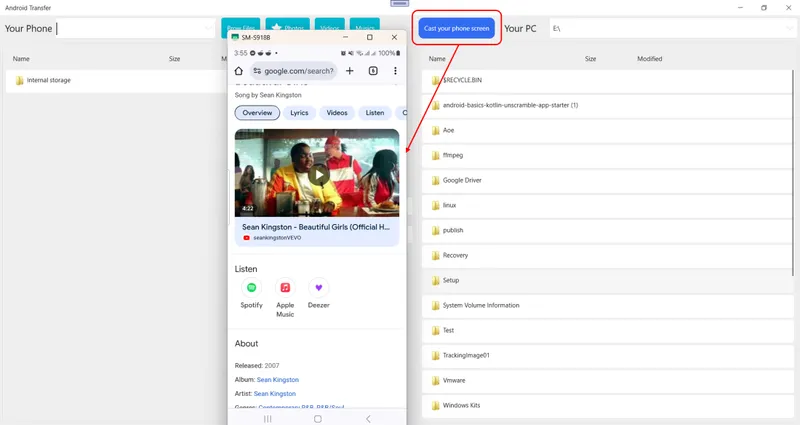
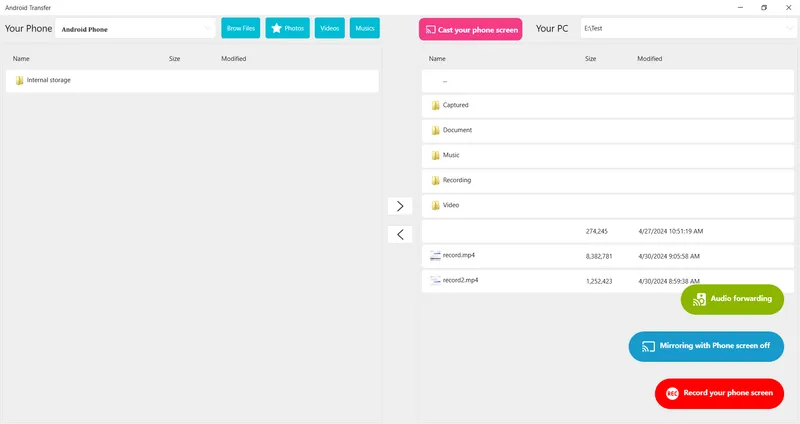
Android File Transfer establishes a Wi-Fi connection to your Android device and reflects the screen on your PC in real time, with low enough latency for casual app use and demonstrations. The mirrored display can be resized and repositioned freely on your desktop, making it easy to reference your phone without physically picking it up. No USB cable, driver installation, or developer mode toggle is required on the Android side.
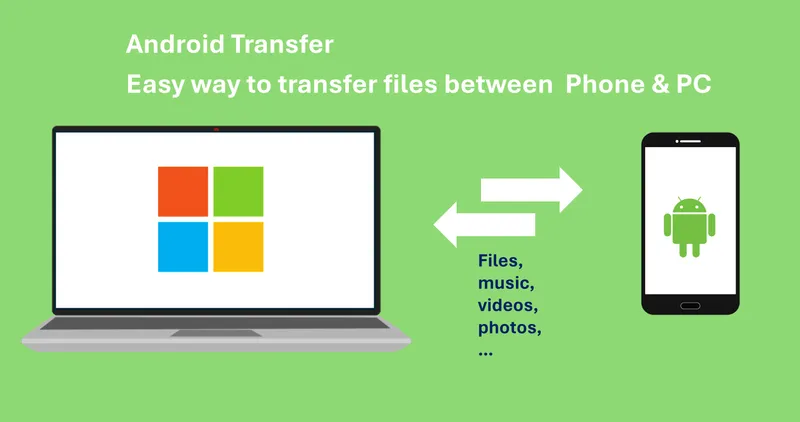
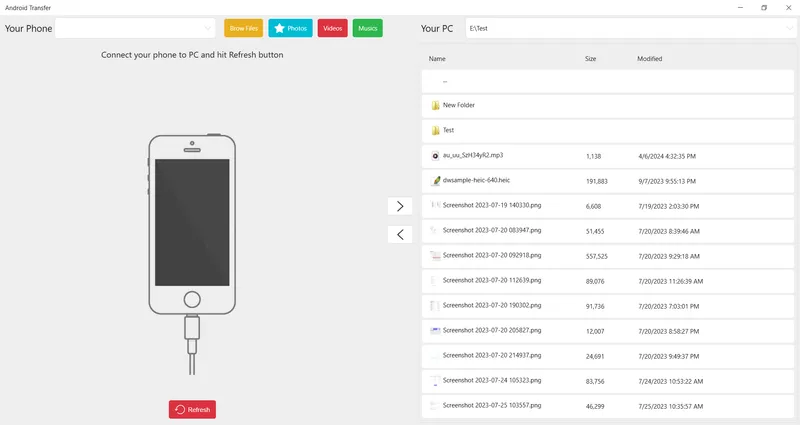
Bidirectional File Transfer
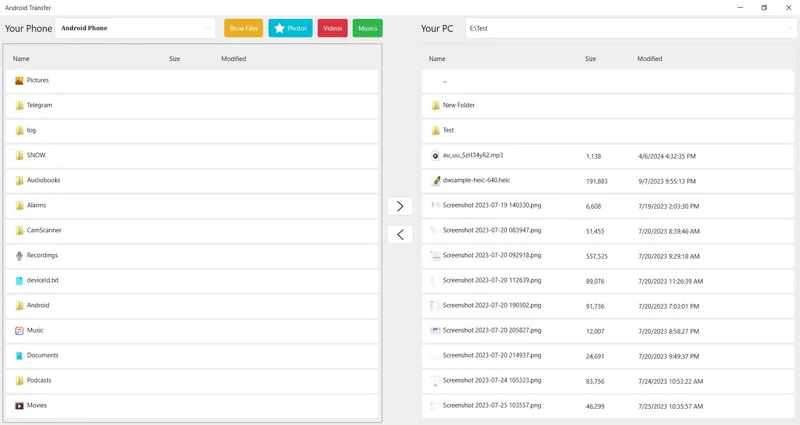
A split-pane file manager displays both the PC filesystem and the Android device's storage side by side, letting you move files in either direction with familiar drag-and-drop interactions. Batch transfers work reliably — selecting a folder of photos and dragging it across processes each file individually with per-file progress reporting. Transfer speed is determined by local Wi-Fi throughput rather than any artificial cap, making it fast enough for large video files.
Remote Touch & Keyboard Input
Clicks on the mirrored display translate to taps at the corresponding screen coordinate, and the PC keyboard maps directly to whatever input field is in focus on the Android side. This lets you type long messages, fill in forms, and navigate app menus at full keyboard speed rather than hunting and pecking on glass. Scrolling is handled naturally through the mouse wheel, and long-press actions trigger by holding the mouse button.
Pros & Cons
- Cable-free connection
- Easy file transfers
- Real-time screen display
- Requires same Wi-Fi network
- Occasional lag on slow networks
- Limited remote control depth
Top Downloads for Windows